In my previous , I covered the initial installation of Sonatype LifeCycle (aka IQ Server). In this post, I will show you how to integrate it into Eclipse IDE, but first a quick background on the benefits of this integration and the value it adds to your software development process.
As I mentioned previously, IQ Server enables your team to make more intelligent decisions on open source components. To illustrate this, we set up an instance on our Ubuntu server, then performed a scan on an application using a set of sample policies to detect violations. While this worked well, it required the use of an already built application, which can be an issue as it potentially contradicts the principles of both DevOps and secure agile development which advocate for faster feedback cycles and shifting security left. Therefore it makes sense to seek to detect and remedy these violations earlier rather than later in the development cycle, and the IDE (Eclipse) is an excellent point to do this.
To integrate IQ Server with Eclipse, you’ll need the Eclipse the Sonatype CLM for Eclipse plug-in which can be installed via Eclipse:
- Click Help->Install New Software -> Add button to add a new repository
- Enter the URL for the Sonatype Eclipse CLM Repository: https://download.sonatype.com/clm/eclipse/releases/
- Enter a name of your choice then click OK.
- This should add the Sonatype CLM to your list of available software
- Click the Sonatype CLM check box then click Next.
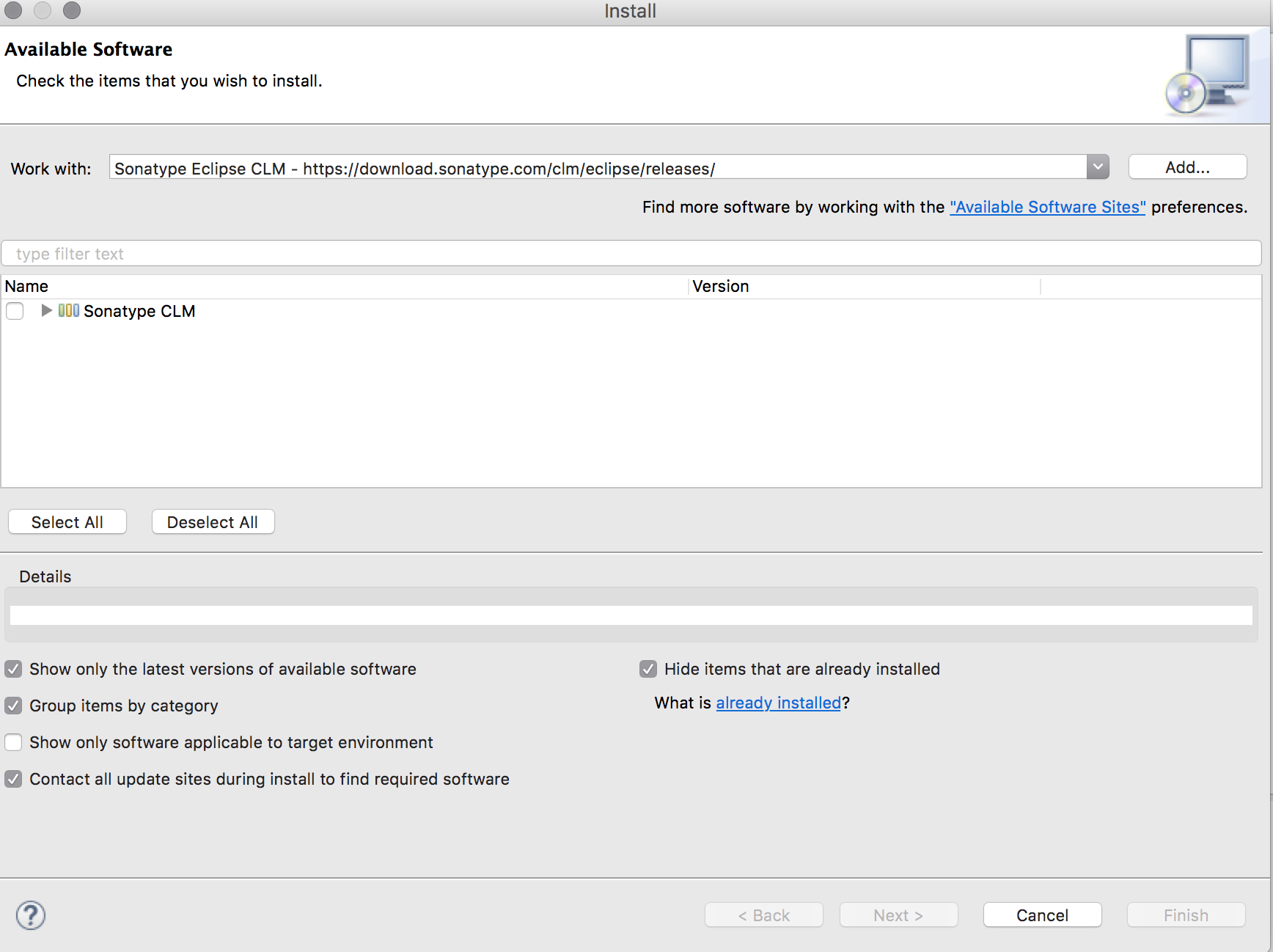
- Accept the User Agreement if prompted, and Eclipse should now download and install the plugin (You’ll likely need to restart Eclipse)
The plugin has now been successfully installed, we’ll just need to configure it.
- Click Window->Show View ->Other-> Sonatype CLM -> Component Info
- Click OK and you should now have the Component View in your Eclipse Console. Note that it’s normal to see an error message warning that the IQ Server has not been configured, this is expected
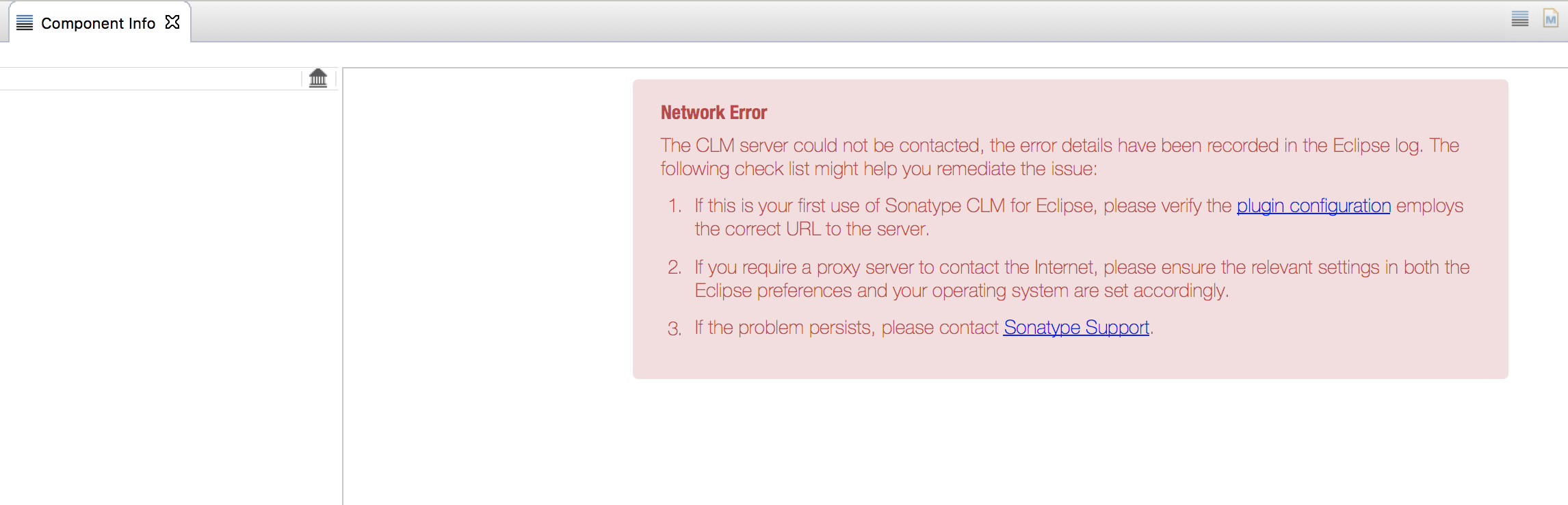
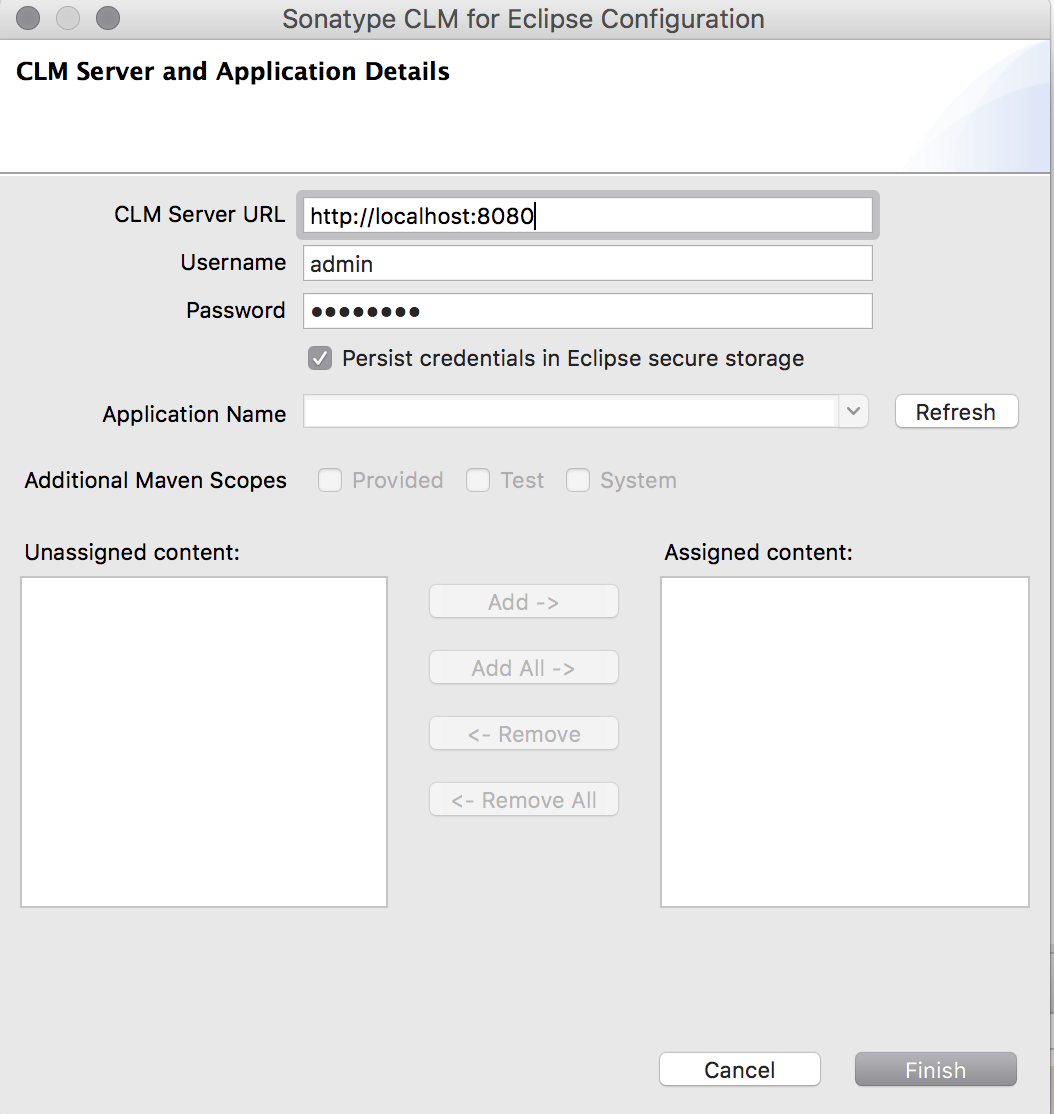
- Click the “plugin configuration” link and enter your IQ server URL and login credentials. If the connection is successful, you should now be able to select an application from your IQ Server, this will tell Eclipse which policies to apply to your current project.
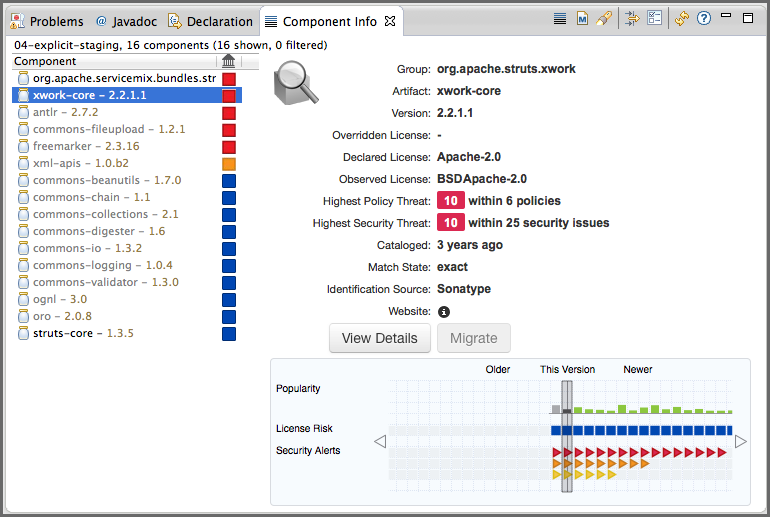
That’s it! You should now have the power of LifeCycle integrated right into your Eclipse, you can click on any of the components in your IDE and find information about its licenses, vulnerabilities (if any) etc.
. 
In my next post, I will show you how to integrate IQ Server into your Nexus Repository.
